Inkline is a real terminal emulator and a small Unix workspace for reMarkable 2. It also works like an AlphaSmart: write on the tablet, then let it type live or send the whole document into another computer as a USB keyboard.
reMarkable 2Type Folio + USB keyboardsWi-Fi + USB network + USB keyboardKitty + initial sixelGPLv3+
01 / The terminal
Made for a slower screen. Ready for real commands.
01
Keep your keyboard.
Use Type Folio, an external USB keyboard, or the built-in soft keyboard. Tap the installed AppLoad icon or press Opt+RightAlt+T, move between nine terminals, and choose whether Caps Lock acts as Control. Pinch to resize text; swipe sideways with two fingers to switch terminals.
02
Keep images in RAM.
Inline and shared-memory kitty graphics stay in an adaptive RAM arena. Images use eight gray levels, try lossless JB2 first, and fall back to IW44 when needed. Nothing spills to flash.
03
Keep your notebooks.
Start Inkline from AppLoad when you need it. Quit to return to notebooks. The installer puts the guide in My files; Settings → Documents also opens guides and original PDFs without closing your terminals.
04
Your tools, one shortcut away.
Add Emacs, Git, Python, TeX, remote shells and other utilities. Assign Opt+RightAlt+letter to a command in Settings or from the shell. T always opens Inkline.
Send keyboard and pen input to your laptop while USB networking stays connected. Write locally with Folio, then tap Send to type live or send selected documents. A powered hub can receive several device types together.
Choose an e-paper update mode, text darkness and minimum contrast. Use Japanese or Chinese input, Latin accents, a Unicode picker and a shared RAM clipboard. Settings save on normal exit.
07
Choose Wi-Fi on the tablet.
Scan and join from Settings page 4, or use the inkline-wifi numbered picker. Saved-network switches stay in RAM; only a successful new profile or confirmed Forget writes the firmware configuration.
SSH to the tablet while the USB-C port is busy. Use Wi-Fi to manage files, start a bulk send, or switch USB mode remotely.
USB Send
Three functions. One cable.
USB networking, HID keyboard and HID pen can work together. Network is On by default with its own toggle. Pen and eraser input use standard HID, with no laptop companion or SSH session required for drawing.
USB Receive
Use the hub’s other ports.
Tap Receive to start. Keyboards, mice and supported Ethernet adapters are detected automatically. Modem and goTenna have independent controls and can both be On alongside your other devices.
Inkline 0.4.10 on screen
A terminal for text, tools, and graphics.
Terminal captures from 0.4.10 on reMarkable 2, plus the Emacs/LaTeX workflow and protocol test.
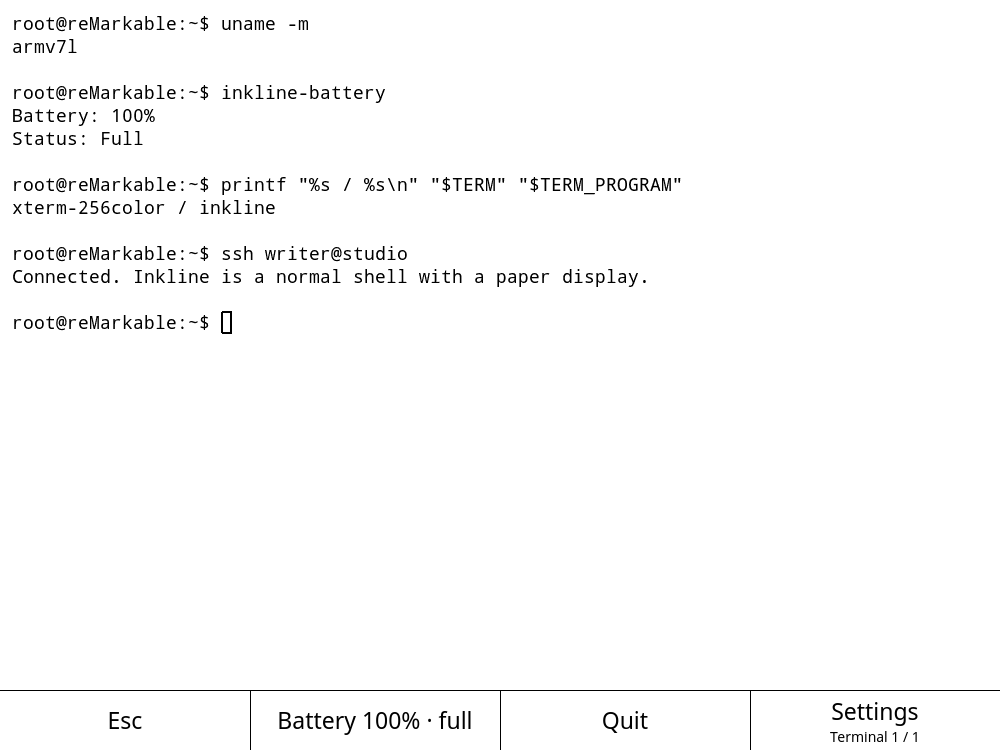
Terminal. The installed ARM build, with the no-color prompt, battery status, shortcuts, and one of up to nine shell sessions.
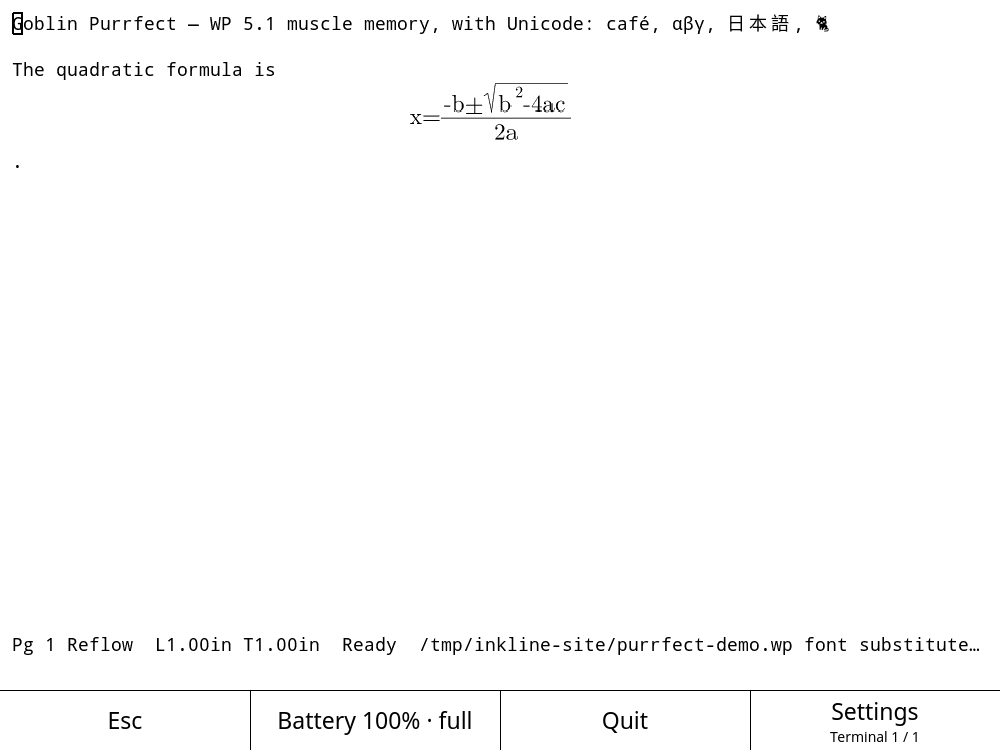
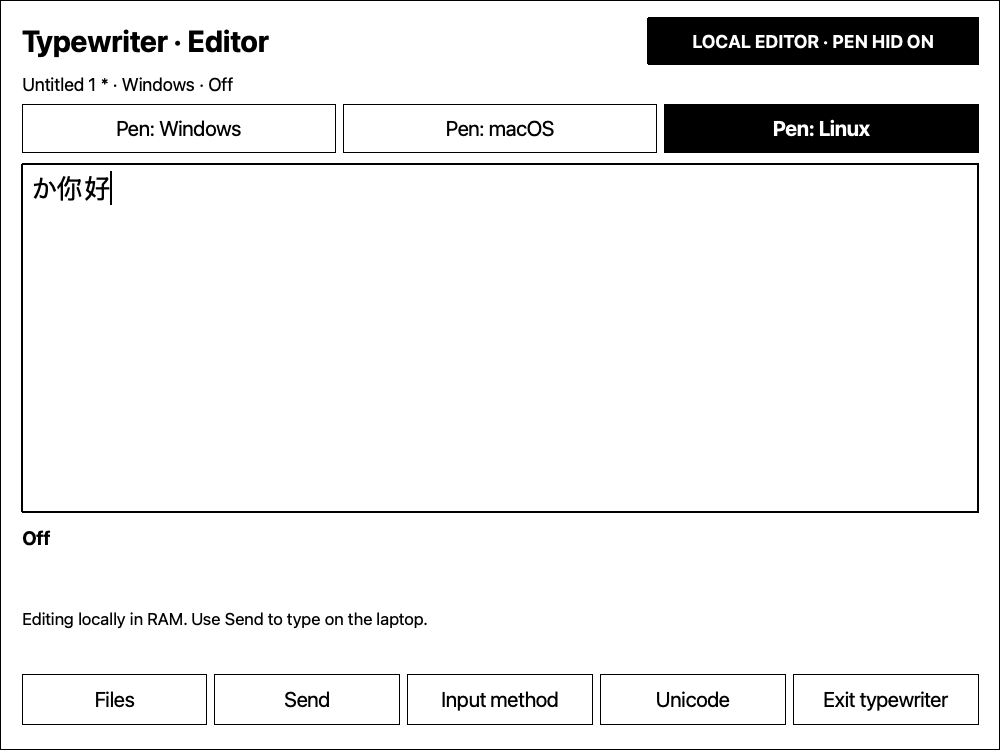
Kitty graphics in Purrfect. The e-paper editor displays Unicode text and an equation delivered through the Kitty graphics protocol.
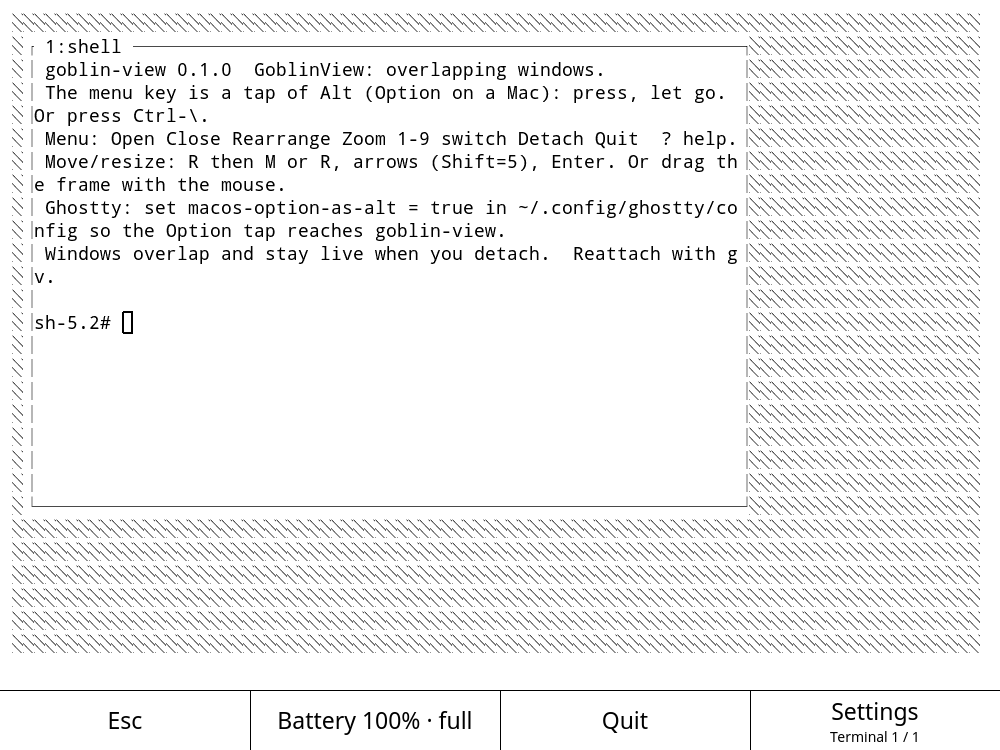
GoblinView. Overlapping terminal windows in strict monochrome mode, running on the tablet with goblin-view -m.
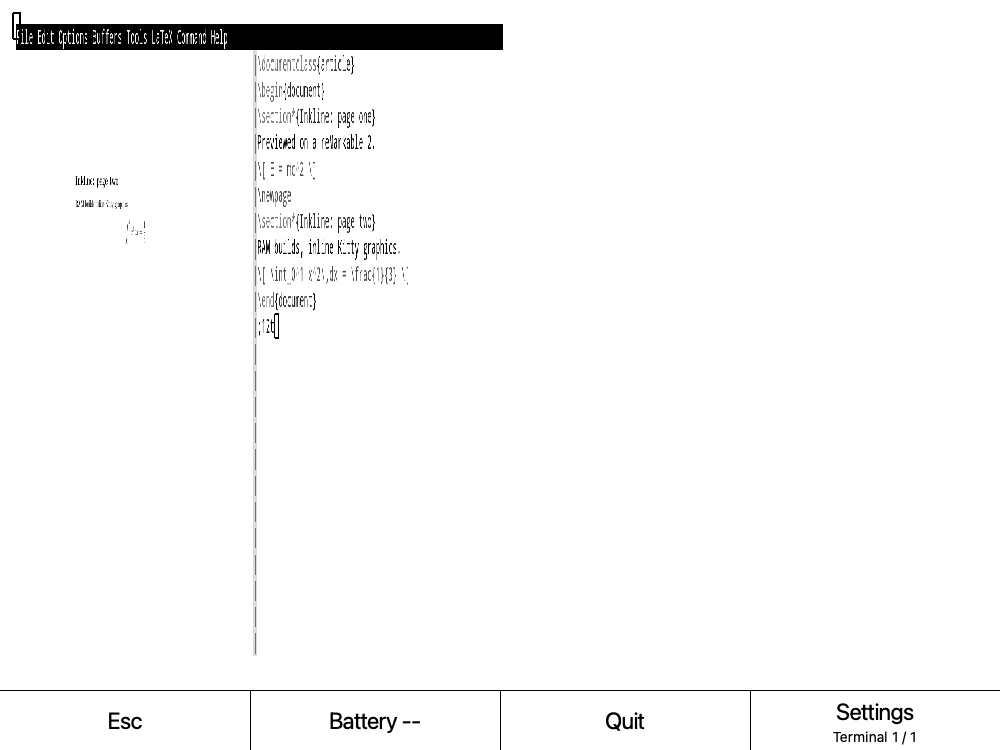
Emacs, LaTeX, and Kitty. Source beside its compiled PDF preview. The preview package keeps build files and its image cache in RAM.
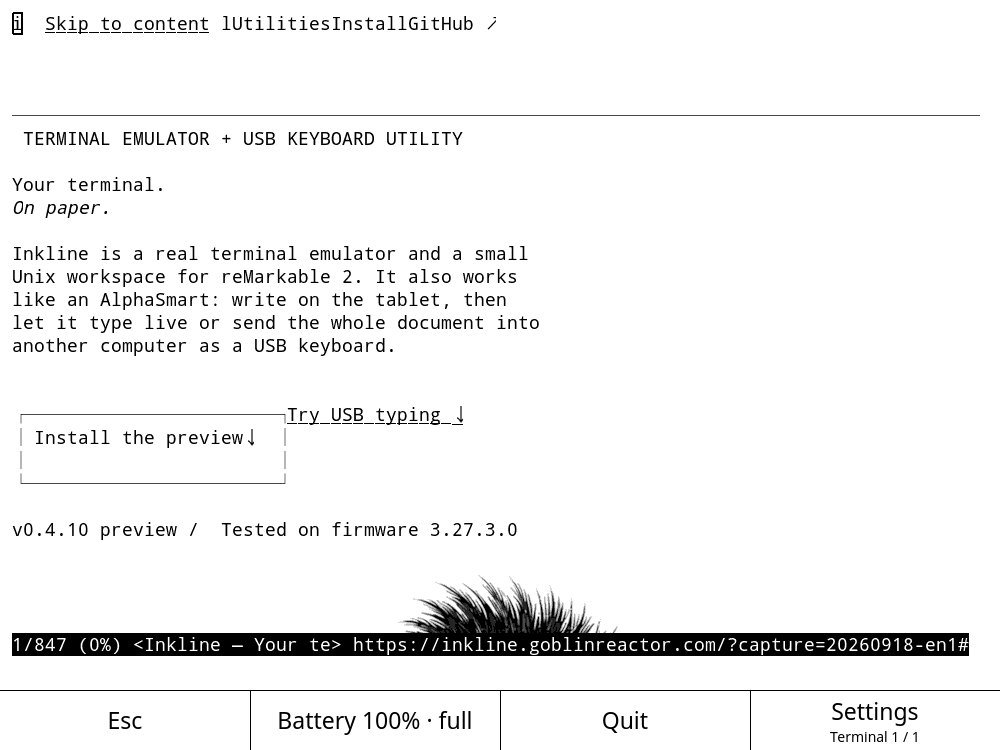
Cha. Chawan 0.4.4 browsing the project site inside Inkline.
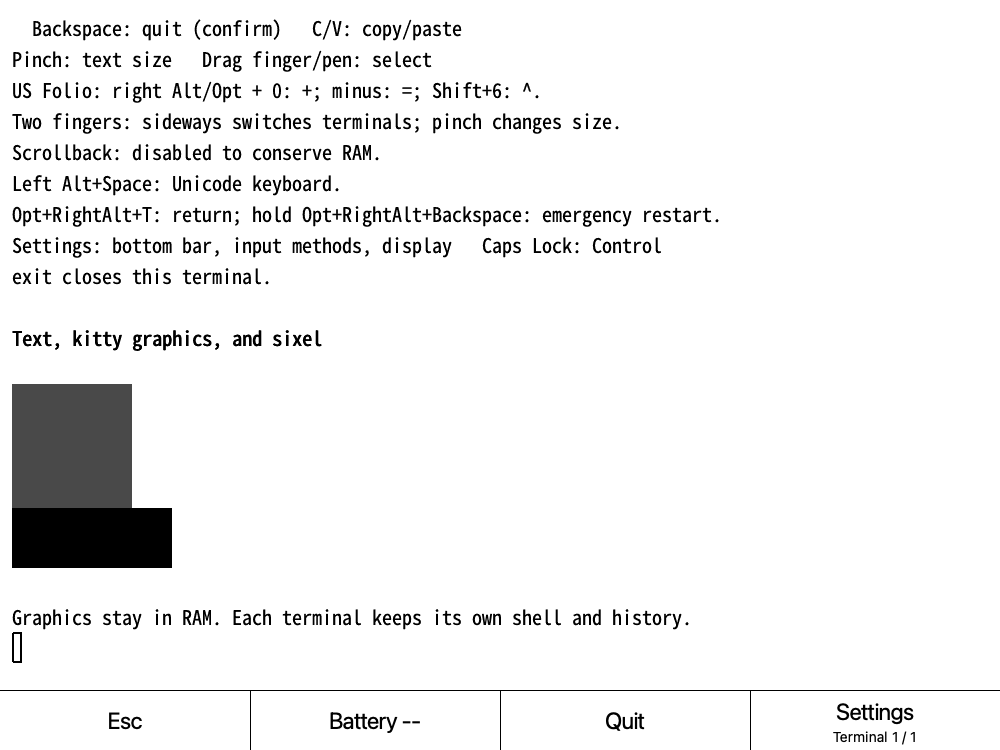
Graphics protocol test. Kitty and sixel terminal content rendered by 0.4.10; retained images share the adaptive compressed RAM arena.
The terminal, GoblinView, Purrfect, and Cha frames were captured over Wi-Fi SSH from the installed ARM build. Capture helpers and output stayed in the tablet’s RAM-backed /tmp.
GoblinView
Run overlapping terminal windows in strict monochrome mode, with Kitty graphics passed through to Inkline.
goblin-view -m
Emacs + LaTeX
Edit source beside its compiled PDF. ghostty-tex sends the preview through Kitty graphics while build files stay in RAM.
emacs -nw paper.tex
Goblin Purrfect
Open the writing environment with its e-paper display profile selected automatically on reMarkable 2.
goblin-purrfect edit notes.wp
Cha
Browse the web inside the terminal and let Kitty-capable pages share the same grayscale screen.
cha https://example.org/
Touch controls and shell basics.
Scrollback is disabled to conserve RAM. Swipe two fingers left for the next terminal or right for the previous one. One finger selects text. The pen acts as a mouse when requested by an app; hold Shift to select text instead.
Switch languages. Switch back.
Press right Alt/Option+Space to open Settings, choose Input method, then tap a method or choose it with Up/Down and Enter. Left Alt+Space opens the Unicode keyboard. Romaji enters Japanese hiragana; Pinyin, basic Zhuyin, and Wubi 86 enter Chinese; US-International adds common Latin accents.
For normal US typing, choose Off — direct keyboard in the same menu. Your choice applies to all nine terminals and is saved across restarts. Each terminal keeps its own unfinished composition.
Bundled Noto and GNU Unifont fallbacks add broad Unicode coverage, including CJK, symbols and historic scripts. Right Option+C/V shares a RAM clipboard between all nine terminals and OSC 52 applications.
02 / Typewriter and pen tablet
Write here. Send when you choose.
An AlphaSmart-style editor with several documents in RAM, a file browser, and a separate Send page. Your Type Folio becomes a live USB keyboard when you choose Send. Your pen can draw on the laptop at the same time.
01 / Editor
Keep writing local.
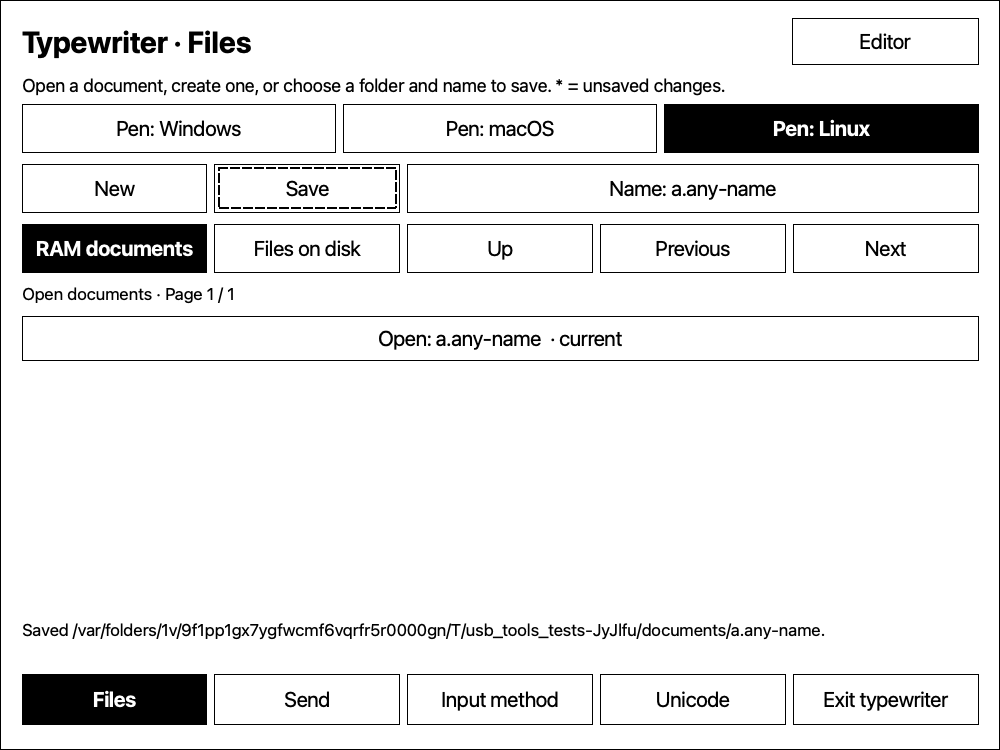
Open Typewriter with an attached, unfolded Folio. Typing edits your local document. Files lists RAM documents and disk folders; tap to open, create, or save. There is no fixed eight-buffer limit.
02 / Send
Choose what goes over.
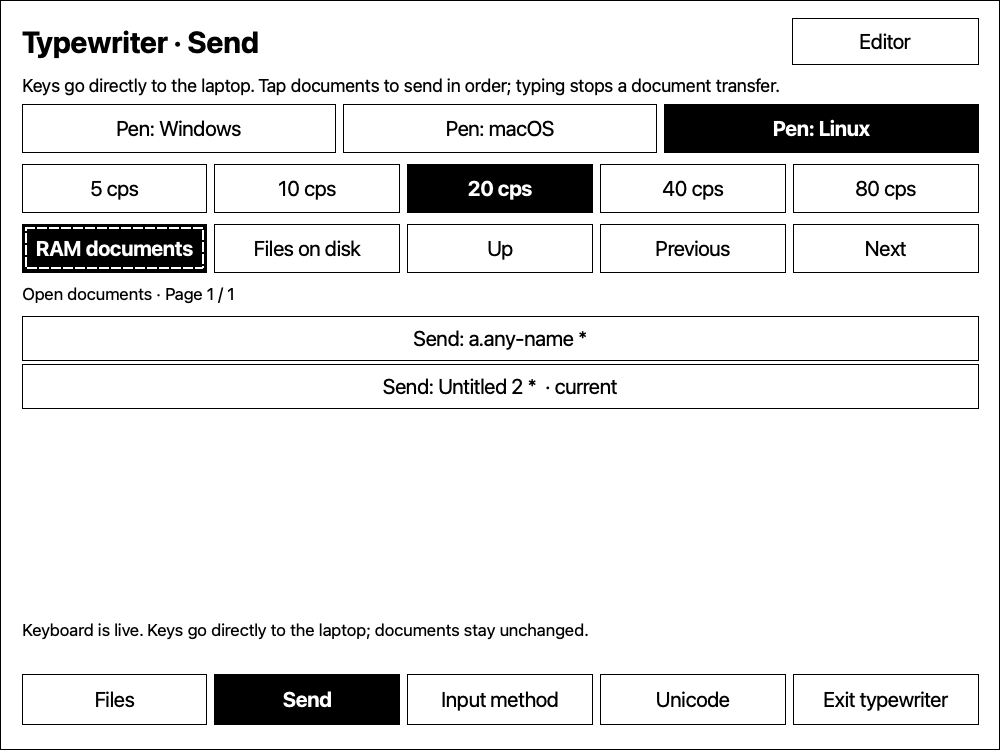
Tap documents in RAM or files on disk to send snapshots in order at 5, 10, 20, 40 or 80 characters per second. The file browser supplies the names; sending a file does not replace your editor buffer.
03 / Live keyboard
Every press goes straight through.
On the Send page, physical keys go directly to the laptop without editing the buffer, invoking an input method, or repainting for each key. Typing interrupts a document send. Tap Editor to stop live output.
Editor. Local text stays in RAM. Fingers select text and operate controls.
Files. Open documents and folders by tapping their names.
Send. Queue documents or type directly; finger-selectable pen profiles stay available.
Actual 0.4.18 interface, captured in the desktop test renderer with sample documents.
A standard USB pen tablet.
Choose Pen only to draw without a keyboard, or use Keyboard + pen with Typewriter. Position, pressure, tilt and eraser state use standard USB HID. Windows, macOS and Linux profiles are selectable by finger; mouse output is an explicit fallback. No laptop companion is required for HID.
Throughout Typewriter, the pen and eraser send only HID events, including over controls. Fingers operate buttons, cursor placement and selection. Folding or detaching the Folio stops both senders. Pen orientation defaults to 270°, first on the left, with arrows showing which way maps to the laptop’s top.
USB role
What can run together
Send to a laptop
Network + keyboard HID + pen HID. USB network defaults to On and has its own toggle.
Receive through a powered hub
Keyboard + mouse + supported Ethernet + modem + goTenna. Modem and radio can be enabled independently.
The single USB-C port uses one role at a time. Send and Receive cannot operate together on that port. Use Wi-Fi to reach the tablet while receiving through a hub.
Start sending.
Install Inkline and the Python utility. Connect the tablet to your laptop with a USB data cable and keep Type Folio unfolded.
Open Settings → USB → Send → Keyboard + pen → Open typewriter. Write locally, or use Files to open a draft.
Focus the destination on the laptop, then tap Send. Type live, or tap documents to send them in sequence. Tap Editor to stop sending; Exit typewriter returns to USB settings.
For a US Folio, choose a US keyboard layout on the laptop. Printed punctuation, including tilde, quotes, zero, parentheses, plus, minus, underscore and equals, is translated to the appropriate HID keys. Right Alt+0 sends +; right Alt+minus sends =. Live keys bypass local terminal shortcuts and input methods.
Document Unicode profiles have separate host setup requirements; HID has no universal Unicode text channel. Mac uses Unicode Hex Input, Linux needs compatible Ctrl+Shift+U input, and Windows uses WinCompose. See setup and limits, or read the nine-language guide.
Save, recover, upgrade.
Save named files from Files. Normal exit saves named documents and a recovery snapshot of all RAM buffers. Updates remove obsolete app and utility versions while protecting versions still used by running processes. Your documents and settings stay in place.
03 / Current state
A working preview. With the edges visible.
Inkline 0.4.18 targets reMarkable 2 on firmware 3.28, checked on 3.28.0.172.
Tested
All 28 host checks pass, covering terminal graphics, input, document browsing, USB reports, mode transitions, Typewriter and cleanup. Folio symbol regressions also pass as ARM code on the tablet.
Installation
AppLoad and the guide in My files are standard. Updates preserve open terminals; quit and reopen once to use the new version.
Still growing
Cross-OS pressure, eraser, host layout and application behavior need broader physical testing. The PDF reader shows original PDFs without notebook handwriting overlays. Kitty placeholders, animations and some sixel modes remain unfinished.
Send combines USB network, keyboard and pen HID. Network defaults to On. Receive automatically discovers input and Ethernet devices; modem and goTenna can both be enabled.
Standard pen, pressure, tilt and eraser reports with Windows, macOS and Linux profiles. Pen only works without Folio.
Typewriter separates local writing, Files and Send, keeps multiple RAM documents and queues selected files at adjustable speeds. Live keyboard reports bypass the buffer and per-key redraw.
Correct US Folio punctuation and number-row reports, including right-Alt plus and equals.
AppLoad, the guide in My files and the in-app document library are standard. Updates safely prune obsolete software releases.
goTenna networking joins the same public IPv6 mesh as the Mac and Linux clients. Compact packets, automatic discovery, and SOCKS5 TCP/UDP support run in userspace.
gotenna-peers lists discovered computers, addresses, hops and connection roles without sending probes.
Modem controls include Off / On / Auto, a configurable dial number, an automatic disconnect slider, and optional proxy sharing over Wi-Fi.
Setup screens share Main / Shortcuts / USB / Wi-Fi / Done navigation. SSH uses the terminal proxy while preserving existing host configuration and post-quantum protection.
An accepted suspend request no longer restores the terminal before the kernel has finished entering sleep.
Every resume transition restarts a two-second monotonic delay. Time freezes during suspend, so the terminal returns only after the tablet remains awake.
Inkline 0.4.9
The sleep image now stays visible throughout reMarkable 2’s deep-to-shallow suspend sequence.
Clock jumps still suppress the wake button, but only the completed systemd suspend operation restores the terminal.
Inkline 0.4.8
The power button now paints a high-contrast sleep screen before suspension and leaves it visible on the e-paper display while the tablet sleeps.
The live terminal returns after wake or immediately if an inhibitor rejects suspension. Twenty-two host checks cover the new display and recovery paths.
Inkline 0.4.7
Scrollback is disabled, and hidden terminals retain compressed eight-level frames instead of raw framebuffers.
Bilevel images first use lossless DjVuLibre JB2; other eight-level images try three JB2 bitplanes. Poor results switch to IW44.
Kitty, sixel, and hidden screens share an adaptive RAM arena that starts empty, grows when memory is available, and evicts old entries under pressure.
Typewriter recovery loads only when opened, Asian input dictionaries use packed storage, and the launcher no longer leaves a wrapper shell resident.
Inkline 0.4.6
Settings page 4 now scans, joins, switches, and forgets Wi-Fi networks.
inkline-wifi list and inkline-wifi pick provide the same controls at the command line.
Scans and saved-network switches stay in RAM. Passwords never enter arguments or logs; successful additions and confirmed removal each save once.
Inkline 0.4.5
The bottom bar now shows Escape, battery state, Quit, and Settings. Right Alt/Option+Up/Down still sends PageUp/PageDown, so the duplicate touch buttons are gone.
Right Alt/Option+Space opens Settings; left Alt+Space opens the Unicode keyboard. Ctrl+Shift+B now reaches Emacs and other terminal programs unchanged.
inkline-battery reports percentage and charging state. Inkline uses its compact value in a no-color shell prompt, and reads battery state without storage writes.
Typewriter now shows distinct high-contrast badges for paused, connecting, live, and whole-document output.
Inkline 0.4.4
Typewriter is now a RAM-backed editor. Load or save any UTF-8 filename, select a send speed, send the full document, stop in progress, or keep typing live. Document edits touch storage only on Save or normal Inkline exit.
The editor now has an explicit Exit typewriter button. The public file and text sender is keyboard-send.
Noto Sans Symbols 2 and GNU Unifont fallbacks add broad Unicode coverage under the SIL Open Font License. The new fonts add about 11.2 MiB installed.
Inkline 0.4.3
Inkline is GPLv3-or-later. Settings → About & licenses shows copyright notices, complete license texts and source information offline. Use the buttons, keyboard, mouse wheel, finger or pen to read them. Browsing notices never writes to storage.
Every download includes the original third-party notices and matching source archives. The package checks that all notices are present.
Inkline 0.4.2
Settings → USB (page 3) switches between networking, outgoing keyboard and receiving a wired keyboard. Typewriter sends Folio input, including Japanese and Chinese composition, to a connected computer. Escape pauses; exiting Inkline restores networking, including after a crash.
Send UTF-8 files with no fixed size limit or temporary spool files. Choose US/ASCII, Mac, Linux or Windows (WinCompose). The single LaTeX-built PDF manual covers USB setup and typewriter use in all nine languages.
Settings → Command shortcuts (page 2) lets you assign a command to a letter. Choose Terminal or Native e-paper app, then Save. Remove asks for confirmation; Reset draft discards edits. T is locked. Only Save and confirmed Remove write to storage. The command-line tool manages the same bindings.
All global shortcuts use Opt+RightAlt, including T and the held Backspace recovery chord. Use the Folio’s separate Opt key; on USB keyboards use Windows/Command (Super). Ordinary Ctrl+Alt remains available to Emacs. Quit and reopen Inkline after upgrading; installation preserves open terminals.
Fixed the keyboard launcher's boot installation. Its service file is available before the home filesystem mounts, and startup waits for the application bundle. Updating migrates the old links automatically. A fresh reboot on firmware 3.27.3.0 confirmed automatic launcher startup and keyboard launch.
Inkline 0.3.7
Fixed graphics clearing: the tablet's clear command removes the startup Goblin and other visible Kitty and sixel images.
Inkline 0.3.6
September 15, 2026
Alt+Space opens a scrollable Unicode keyboard, grouped by category. Tap a character or enter its hexadecimal codepoint.
Nine terminal slots, right Alt/Option+1–9 to select them, and an indicator that counts the terminals actually open.
Pen input reaches apps that request mouse events.
Register Opt+RightAlt program shortcuts. Opt+RightAlt+T stays reserved; hold Opt+RightAlt+Backspace for two seconds to recover from a hung app.
One PDF manual includes nine languages, with a language index at the beginning. It is built with LaTeX and ships with the installer.
The power button suspends the tablet and preserves open shells in RAM. Press it again to wake.
The 0.3.5 display changes are included: choose Fast, Balanced, Crisp, Mono, or Saver in Settings.